
The information provided in this post is subject to the disclaimer.
Deploying an Azure OpenAI resource
In your Azure subscription, create a new Azure OpenAI resource from the marketplace. Select the Subscription, Resource group, Region, Name and Pricing tier as required.
For the Network Type, choose All networks, including the internet, can access this resource
Apply any relevant Tags
Click Create
When deployment has completed, click Go to resource
DEPLOYING A CHAT COMPLETION MODEL
in the Overview > Get Started tab, click Go to Azure AI Foundry portal
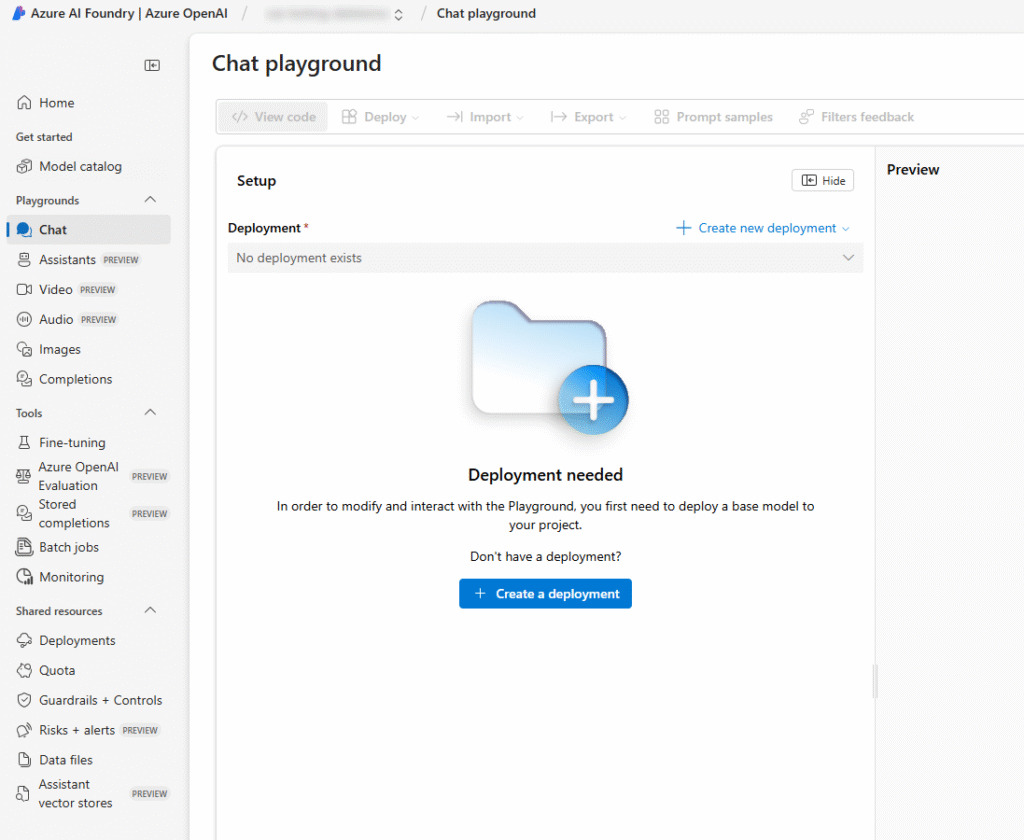
In the Chat Playground, click Create a deployment
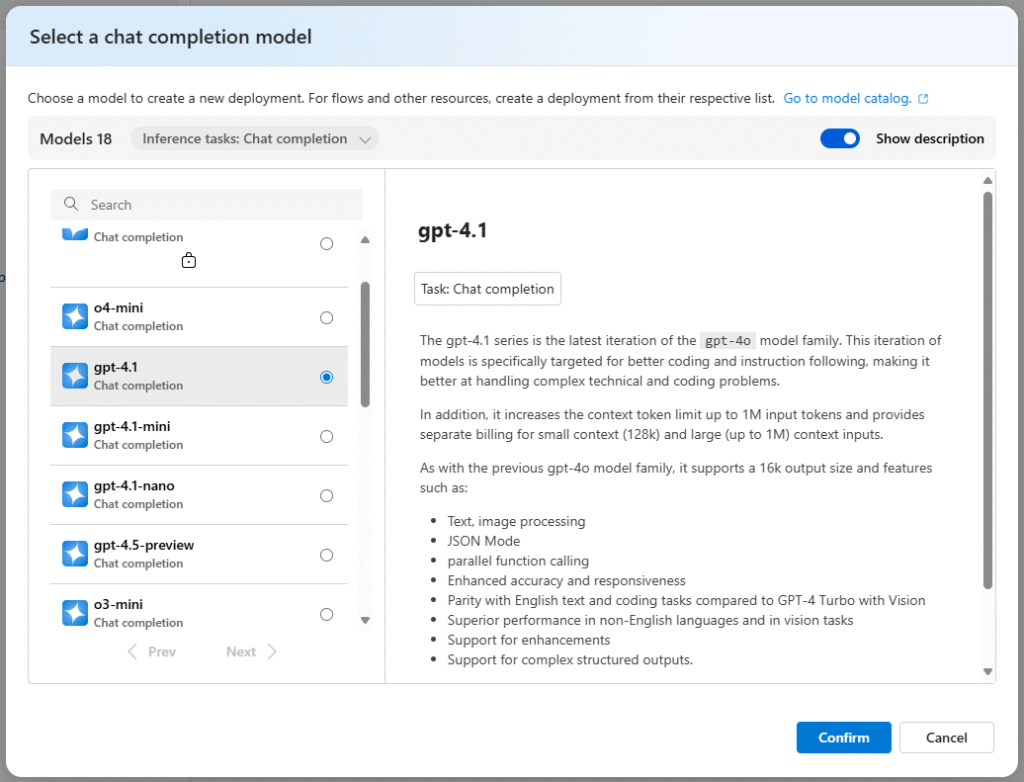
Select the relevant model. At time of writing, I am using gpt-4.1. Click Confirm
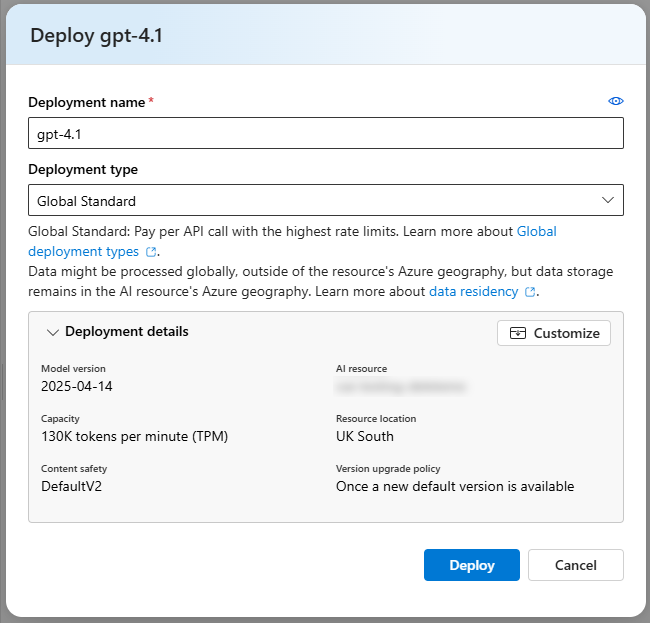
Make a note of the Deployment name, then click Deploy
Obtaining your API details
In Azure AI Foundry, click Deployments
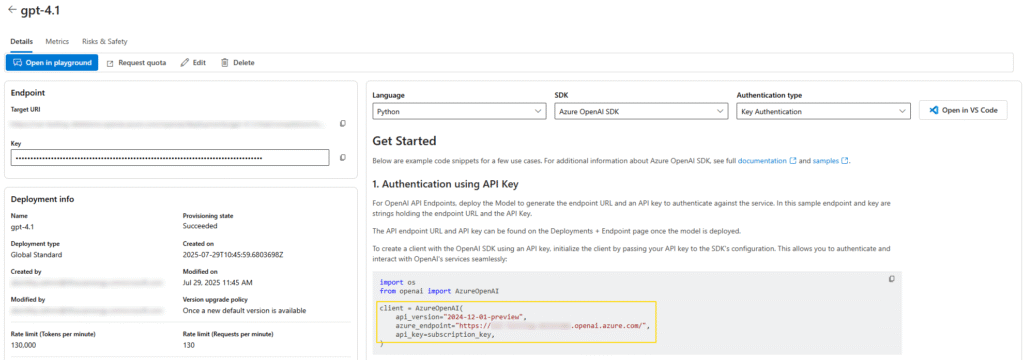
Click your newly deployed model. For this example, the model is gpt-4.1
Make a note of the api_version and azure_endpoint as displayed in the sample code
Return to your Azure OpenAI resource in the Azure Portal and click Keys and Endpoint
Make a note of either of the two keys by clicking the Copy to clipboard icon to the right of either key
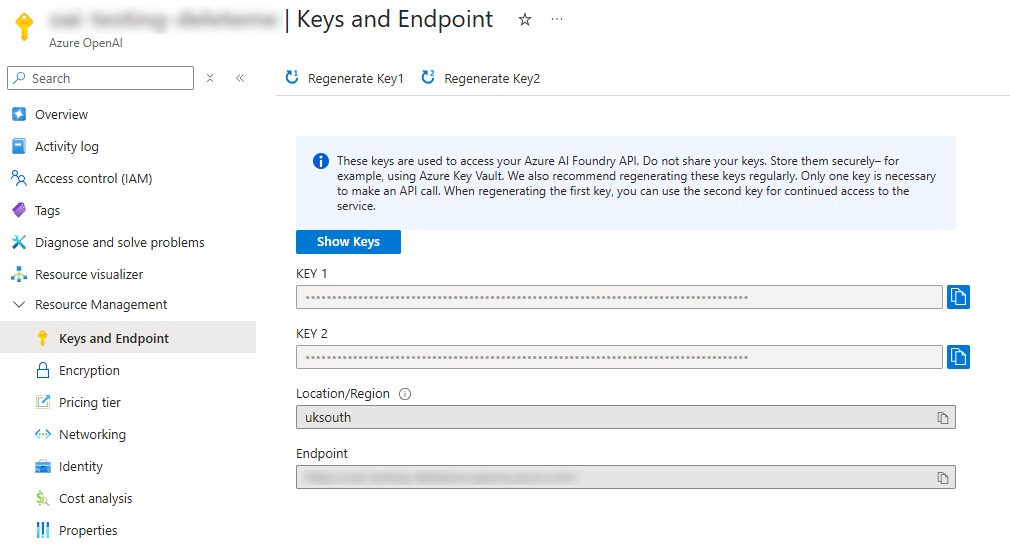
You should now have a note of the Azure OpenAI details required to connect to your API:
- API key
- Endpoint
- Deployment name
- Version